How to change a channel's audio on SIPTV
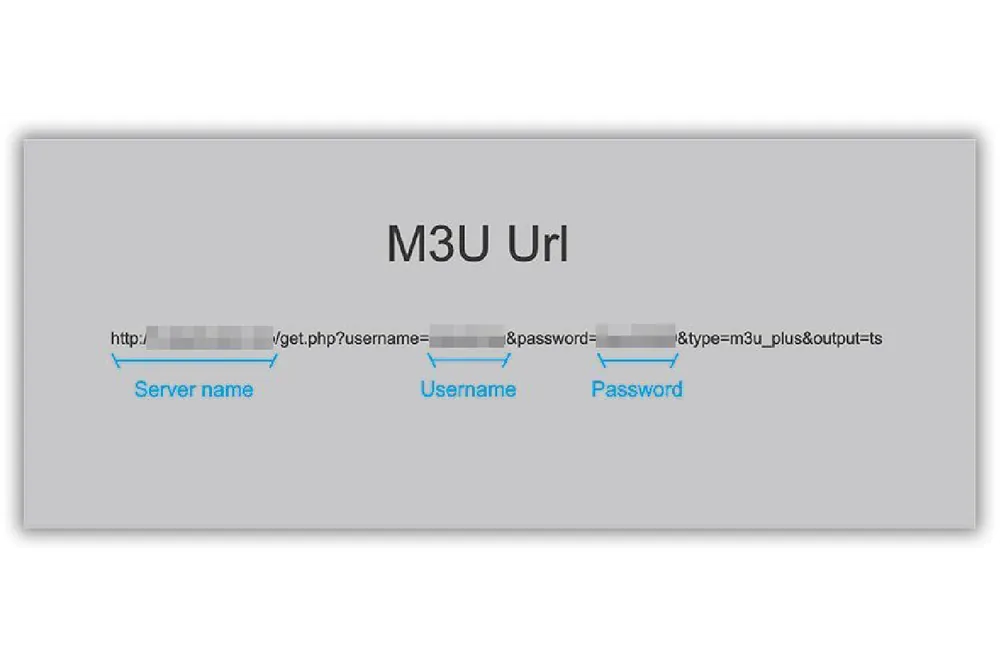
SIPTV (Smart IPTV App) is the most used application for streaming IPTV channels on Smart TV with frequent updates and a user-friendly interface. All you need is a Smart TV and an internet connection. This application also supports EPG as well as Picons and grouping. In order to have EPG, Picons and channel groups, the M3U file or URL that you are uploading to this application, must be m3u with options.
How to change Audio language and Subtitles on Samsung TV
Remote control commands Samsung
- P+/P- and Arrows – switch pages, groups, channels, and videos
- UP, UPx2 – show current programme information
- DOWN – show channel history
- SELECT (OK), CH LIST – load channel list in play mode
- INFO, INFOx2 – show current programme information
- Number Keys – channel number selection; “0”, PR CH – channel history
- RETURN – hide channel list and info bar; Go back to the primary list
- EXIT – exit the application
- P.SIZE, TOOLS, EXTRA – change stream/video aspect ratio
- PLAY/PAUSE/STOP – play/pause/stop stream/video (exit video player)
- PLAY (long press) – permanent info bar enable/disable
- PLAY_PAUSE – play/pause stream/video; show Groups in channel menu
- TTX/MIX – enable/disable 3D mode (Side-by-Side)
- AD/SUBT – change subtitle track in stream/video (if available)
- REC – toggle DVB input on/off
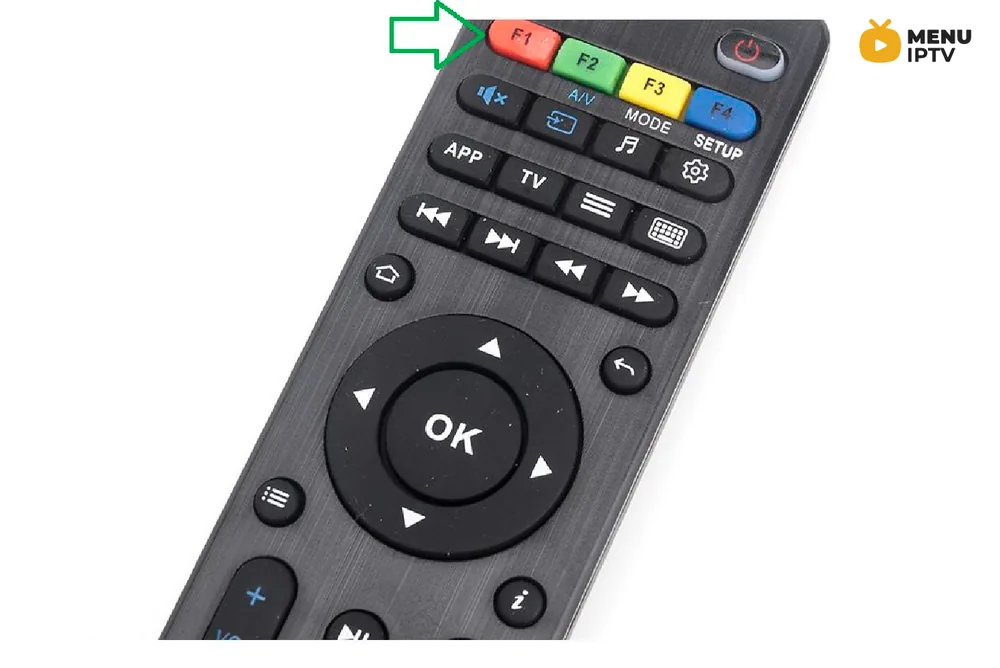
- RED – settings in the primary list; select audio/HLS track in stream/video
- GREEN, GUIDE – EPG information; choose video play mode
- YELLOW – show all channels; digital clock or aspect ratio in play mode (option in settings)
- BLUE – show Groups; settings in play mode
Changing subtitle language for movies Samsung
In order to change the subtitles, press AD/SUBT button, select the language, press OK to set the language, press (AD/SUBT, Back) again to hide the window.
Changing audio language for channels Samsung
In order to change the audio channel, press the RED button, choose the language, press OK to set the language, press OK (RED, Back) again to hide the window.
How to change Audio language and Subtitles on LG TV
Remote control commands LG
- P+/P- and Arrows – Switch pages, groups, channels, and videos
- Up/Down – Show current programme information; Channel history
- ОК, Wheel – Load channel list in play mode
- INFO, INFOx2 – Show current programme information
- Nr. Keys – Channel number selection
- “0” – Reload playlist; a Previous channel in play mode
- BACK – Hide channel list and info bar; Go back to the primary list
- RATIO, Q.MENU – Change picture ratio
- PLAY/PAUSE/STOP – Play/pause/stop/restart stream/video
- PLAY (long press) – Permanent info bar enable/disable
- RED – Select audio track in stream/video (webOS); Toggle DVB input (Netcast TVs)
- GREEN – Electronic Programme Guide (EPG); Choose video play mode
- YELLOW – Show all channels; Show digital clock in Play mode
- BLUE – Show Groups; Settings in play mode
Changing subtitle language for movies LG
In order to change the subtitles, press AD/SUBT button, select the language, press OK to set the language, press (AD/SUBT, Back) again to hide the window.
Changing audio language for channels LG
If you own a webOS 3.0 TV, you can choose audio track and set subtitles to on/off using red/green buttons. On webOS 2.0 it’s only possible to turn subtitles on/off.
For older LG Smart TVs, the audio track can only be “pushed” in the playlist (for streams only, not VOD!). Otherwise, stream audio language is automatically picked depending on the Audio Language Settings (1st Audio) on your LG Smart TV.
Let us know in the comments section below about your opinion and feedback concerning this article. Thank you in advance.
Need an IPTV subscription for this device? Get the free 24h IPTV test from Menuiptv, then pick a plan from 38 € for 6 months.