
11 steps to add EPG on Kodi
Kodi is an open-source media player which is a free application that functions as a digital media center. This application enables you to play your media, cast it between various devices, from a primary location to other devices.
You can use Kodi on most of the operating systems such as Android, Microsoft Windows, Linux, iOS, and devices such as Amazon FireTV , Smartphones,AppleTV, Xbox, and PC.
How to add EPG to Kodi
Step 1: Open Kodi and click on “Add-ons“.
*Please note, the installation process is very similar in all operating systems.
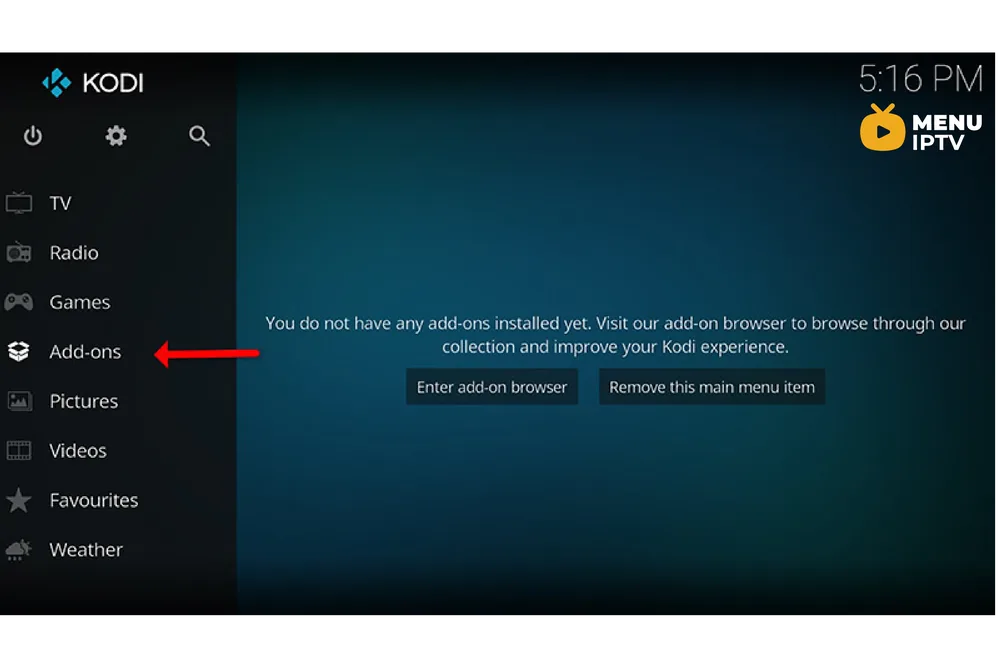
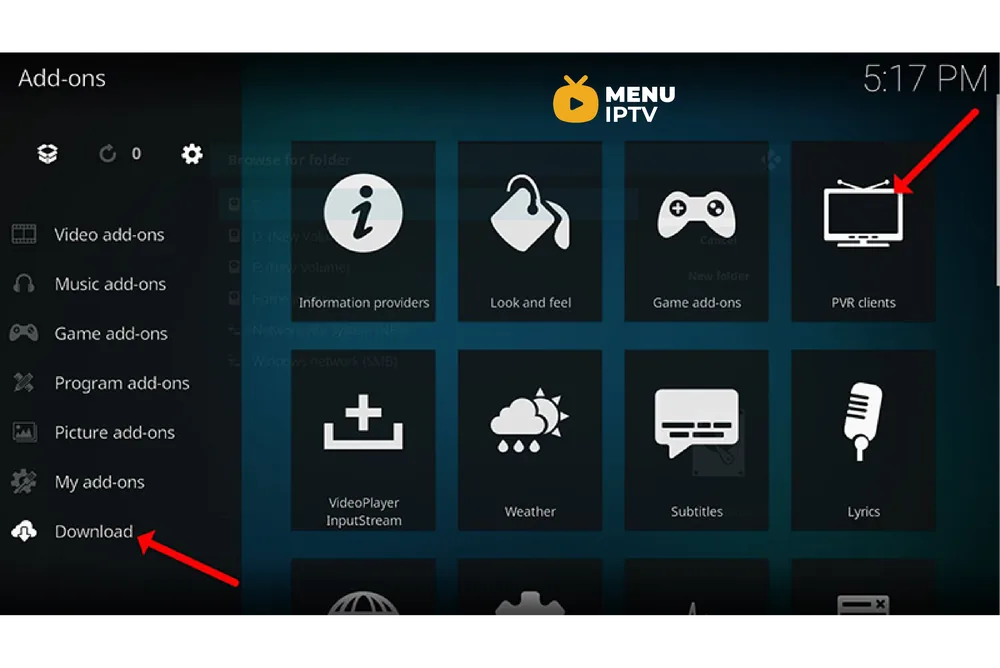
Step 2: Now click on “My Add-ons” then “PVR clients“.
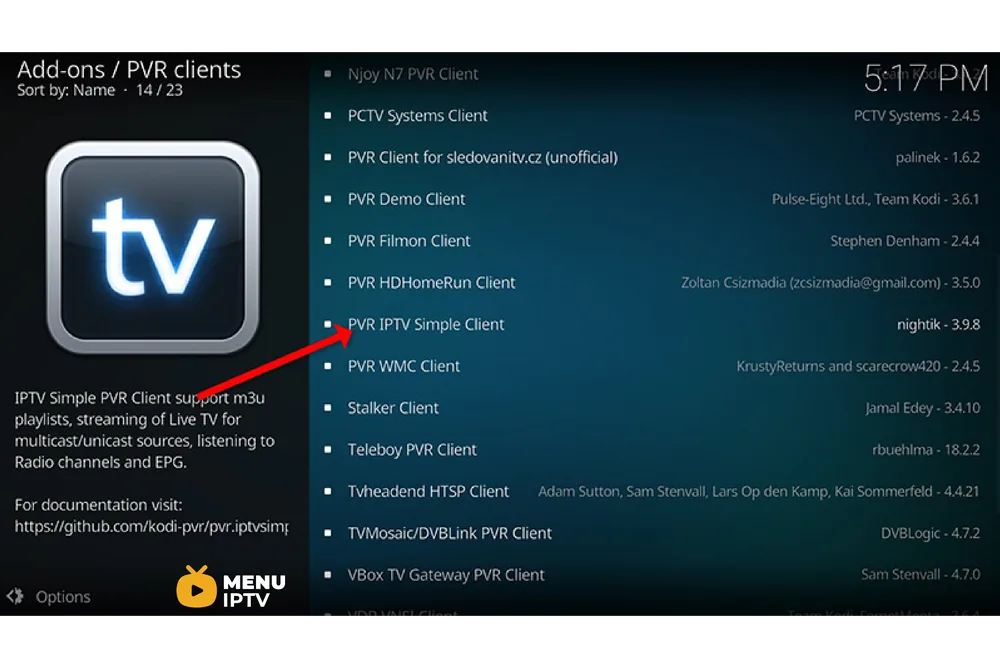
Step 3: Now select “PVR IPTV Simple Client“.
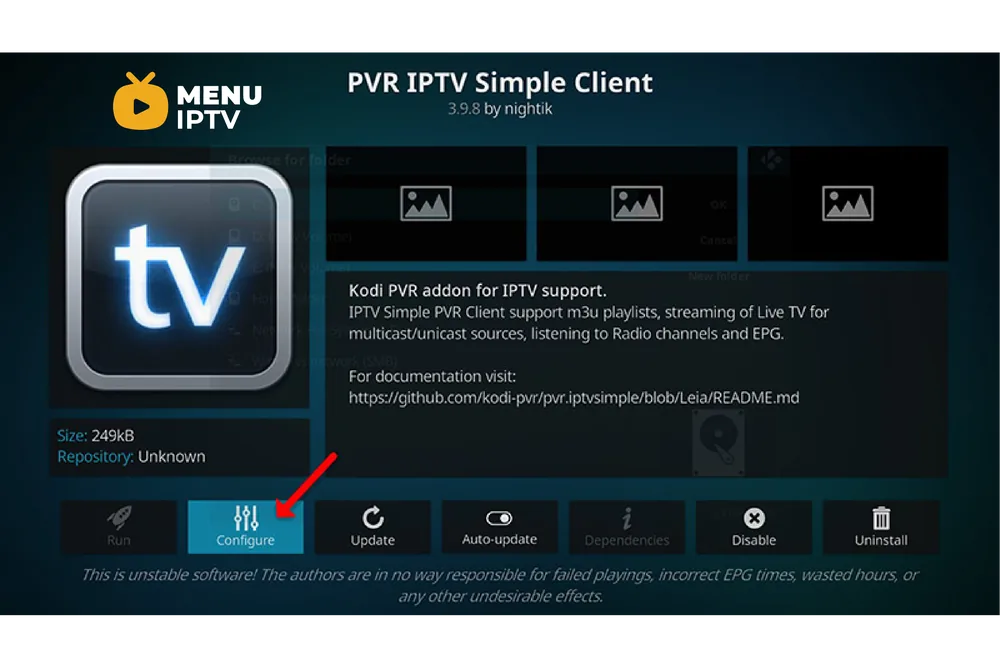
Step 4: Proceed to PVR IPTV Simple Client and select “Configure”.
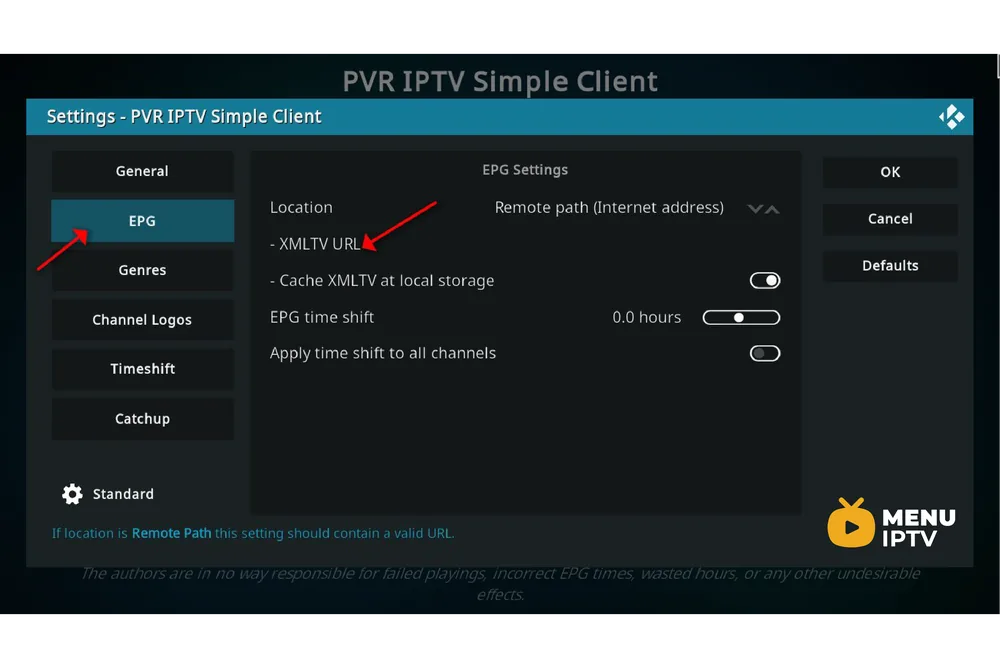
Step 9: Select “EPG Settings”.
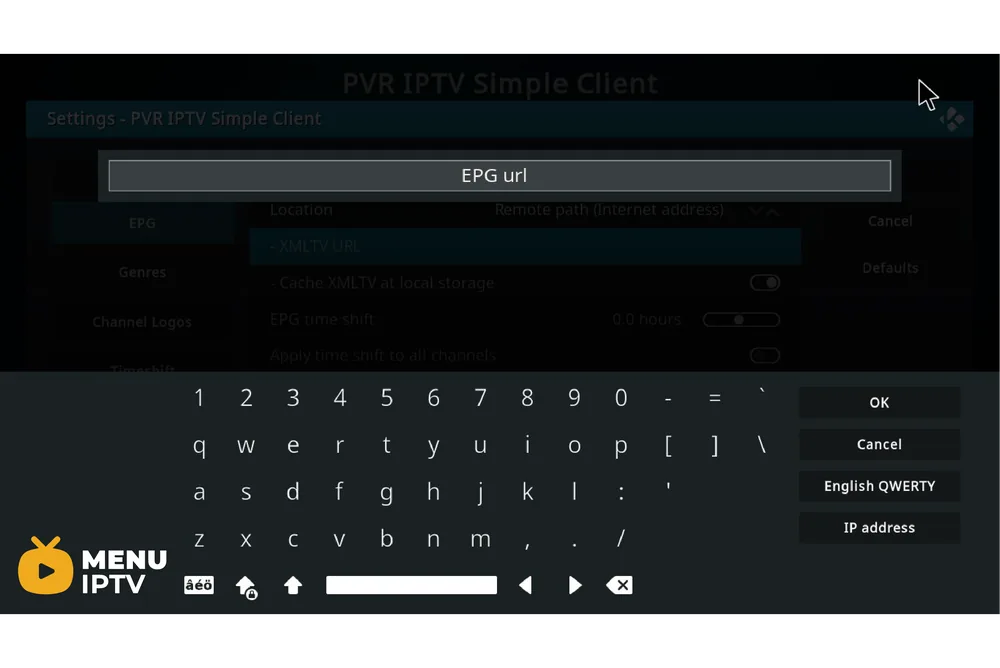
Step 10: On “Location” select “Remote Path (Internet address)” and enter “EPG URL” at “XMLTV URL”. You can ask for EPG URL from your IPTV provider.
Step 11: Click “OK” and reboot your KODI device.
Now TV guide will be added next to your TV channels.
Conclusion
Kodi is able to play virtually every media content that you can imagine and is very customizable. Kodi allows you to change the color, skin of the user interface based on your tasteful preferences. You can also download tons of various add-ons to make your entertainment world even more remarkable.
Need an IPTV subscription for this device? Get the free 24h IPTV test from Menuiptv, then pick a plan from 38 € for 6 months.